|
1. How to Install
Required Hardware
-
The following is the minimum hardware that is required to run Relay Timer PPC:
-
Pocket PC 2003 or later
-
Microsoft ActiveSync and synchronization hardware for application
installation
-
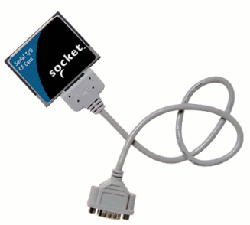
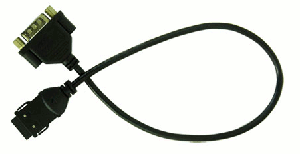
RS232 serial adaptor cable suitable to connect the Pocket PC
with a standard DB9 serial port on the peripheral devices (Relay Control Board)
About the serial adaptor cable, one solution is a Compact Flash to Serial adaptor
such as the Serial I/O CF Card manufactured by Socket. Another option is to obtain
a serial adaptor that connects directly to the synchronization port of the Pocket
PC.
Install Relay Timer PPC
- Connect the Pocket PC to the desktop PC and ensure that
ActiveSync is operating correctly.
- Run Relay Timer PPC setup executable file on your desktop
PC and follow the installation wizard.
Another way to install Relay Timer PPC:
- Copy Relay Timer PPC setup *.cab file from desktop PC to
Pocket PC.
- Run the *.cab file on Pocket PC to finish
intalling.
2. How to Set COM Port
The default COM Port is COM0 with baudrate 115200. The port and baudrate can be
set as below.
|
Click Menu -> Configure

|
The Configuration dialog will be opened.

|
Select Port Name and Baudrate.
Click OK to finish setting.
3. How to Turn On/Off Relay Manually
The light on top right of relay control panel indicates the status
of the relay. Red for relay on, green for relay off.
Click mode button to step into Manual mode.
Click the slider to turn on/ off the relay. The light becomes green/red.
4. How to Turn On/Off Relay Automatically
The default mode is auto mode, that is, the On/ Off status of relay is depending
on time setting. The time of the relay on must be set at first.
Click Setting button on the relay control panel to open
Relay Setting dialog.
Click Add button to open Time Setting dialog.
The relay can be given a name here.
Input the Start Time and End Time of this relay
on. Click OK to returen Relay Setting dialog.
Different time schedules can be added by this way.
Click OK to finish relay setting.

The relay will be turned on automatically according to the setting time.
5. Rapid Buttons
|
Load Time Setting |
|
Click to load a *.cfg file to get time setting of all relays. |
|
Save Time Setting
|
|
Click to save timer setting of all relays to a file (*.cfg) |
|
Turn Off All Relays |
|
Click to turn all relays off. |
|
Turn On All Relays |
|
Click to turn all relays on. |
|
Invert All Relays |
|
Click to invert all relays. |
|
Switch All Relays to Auto Mode |
|
Click to set all relays in auto mode. |
|
Load Status Pattern |
|
Click to load a *.ptn file to set status of all relays. |
|
Save Status Pattern |
|
Click to save current status all relays to a file (*.ptn) |
|