|
How to Open Connection
After installing Comm Operator Pal, click Start
Menu -->Comm Operator Pal to run the program. Connection dialog will
be displayed. This dialog is for changing the connection parameters, like COM port
name, baud rate, IP address or port number.

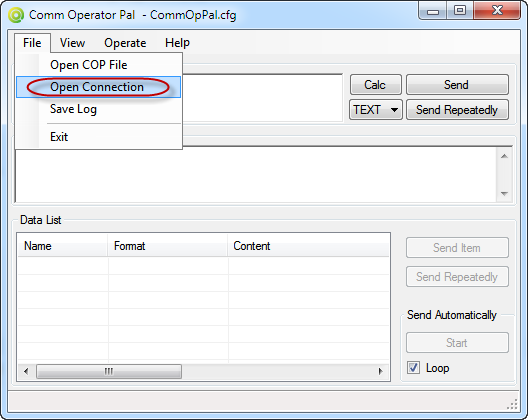
It can also be opened by clicking menu File --> Open Connection.
How to Open COP File
Comm Operator Pal(COP) file contains connection parameters, send data list and options
for sending and receiving data.
COP file is created by Comm Operator. It is a snap
shot of current setting of Comm Operator.
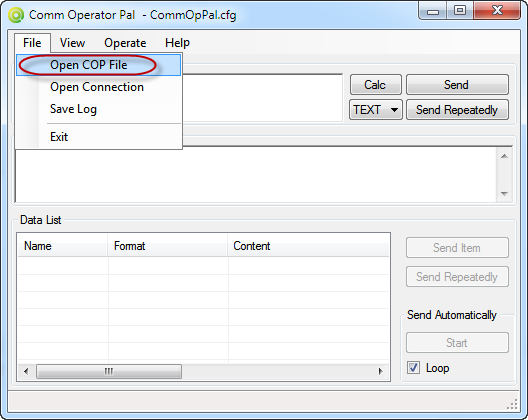
Click File --> Open COP File to show Open dialog. Select the
COP file and click OK button, Connection dialog will be opened. It displays the
default setting for the opened COP file. Connection setting can be changed here.
Confirm the setting, the COP file is opened and the data is shown in the send data
list.

How to Check Sum
Click Calc button to open Calculator dialog.


This dialog is a utility
to calculate the length and checksum of the data.
Format: Show the format of the
content.
Checksum(all): The result of checksum for all content. It uses the check sum method defined
in COP file.
Selected Length: The bytes of the selected, in hex.
Checksum(selected): The check
sum of selection. It uses the check sum method defined in COP file.
It also include other calculation tools.
How to Send Data
There are two ways to send data.
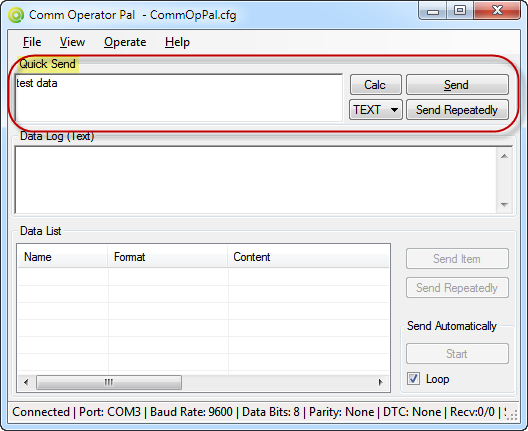
1. Send data from Quick Send Panel
- Input the data in Quick Send editor.
- Press Enter or click Send button will
send the data directly.
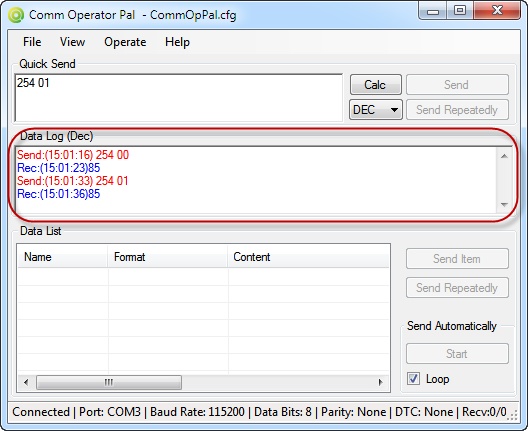
- Click Send Repeatedly button to send the
data continuely.
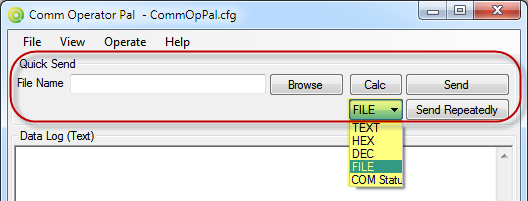
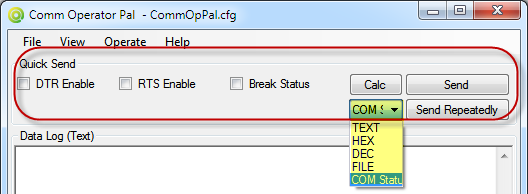
Select data format in drop down list. It supports data in Text, Hex and Decimal
format.
File can be sent.
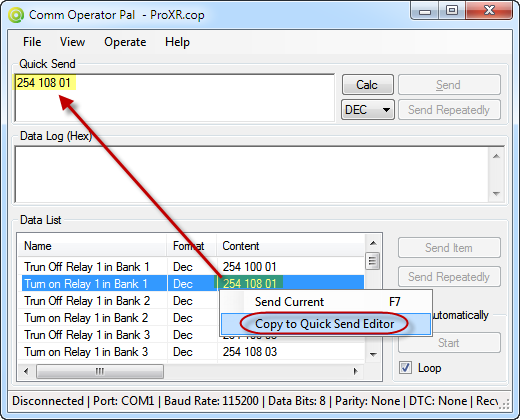
The data in Quick Send edit box can be filled by selecting the Copy to Quick
Send Editor from popup menu in Data List Panel.
This would be useful when a data in list need to be send with a little change.
2. Send data from Data List Panel
- Open a COP file, all data will be shown in the list.
- Click Send Item button to send selected
data.
- Click Send Repeatedly button to send selected
data continuely.
- Click Start button to send all data one
by one automatically.
- Check Loop checkbox to send all data one
by one circularly.
Select a item in data list, right-click to show popup menu. There are two options.
One is to send current item, the other is to copy the selected item to Quick Send
Editor.
NOTE: Before you send data,
you must be sure the port has been opened correctly.
How to Save Log
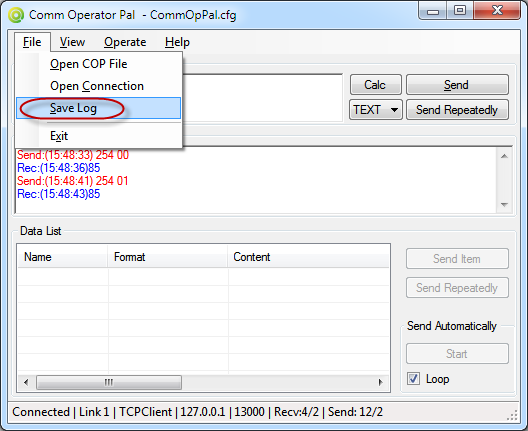
Click File-->Save Log to save the content in Data Log Panel to a file.
|